
Xico Clean
Bring your Mac back to its best.
One Smart Scan finds system junk, AI-tool caches, duplicates and large files — and shows you every item before you decide.
Version 0.7.1 · Requires macOS 14 or later · Apple silicon and Intel · 15-day free trial

- 20
- tools
- 6
- sources scanned at once
- 8
- aircraft, picked by passenger count
- 12
- themes
Get the highlights.
Smart Scan
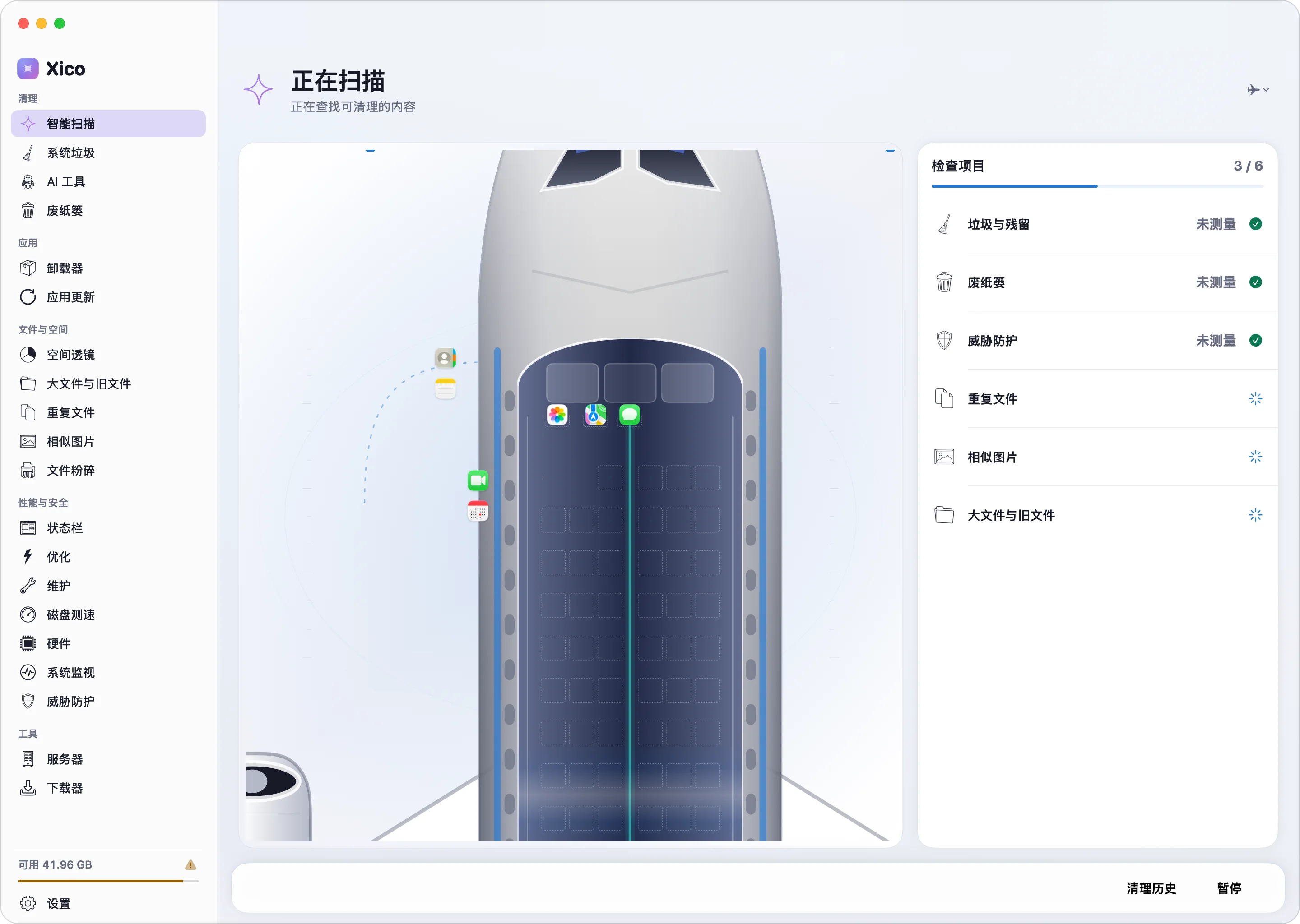
Your apps, boarding.
As the scan runs, apps with findings board like passengers — and progress counts only the checks that have really finished.
AI Tools
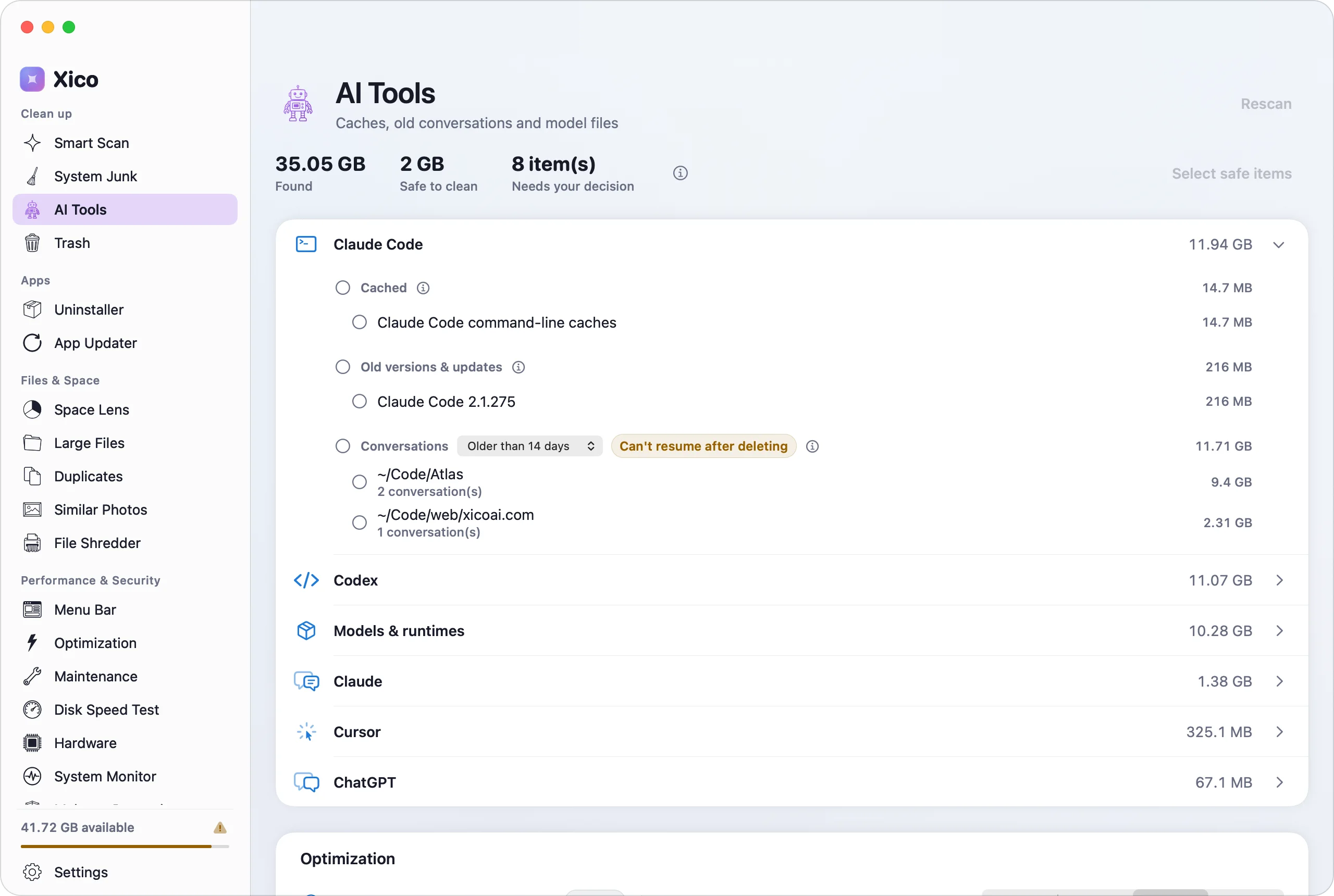
Tidy up after your AI tools.
Caches, old versions and old conversations from Claude Code, Codex, Cursor and ChatGPT, listed tool by tool and sorted by risk.
Space Lens
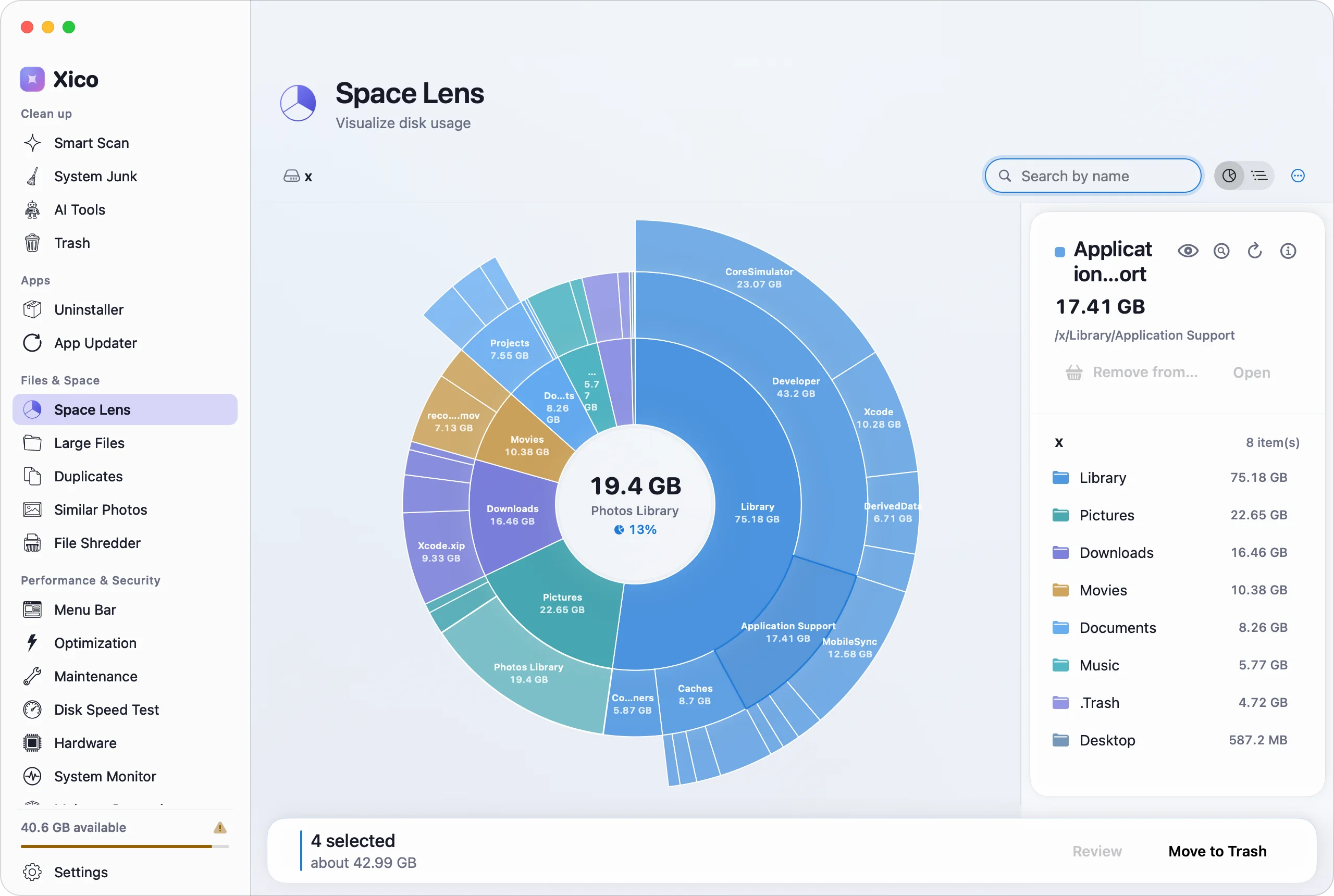
See where your space went.
A sunburst you can drill into lays your whole disk out in front of you.
Uninstaller
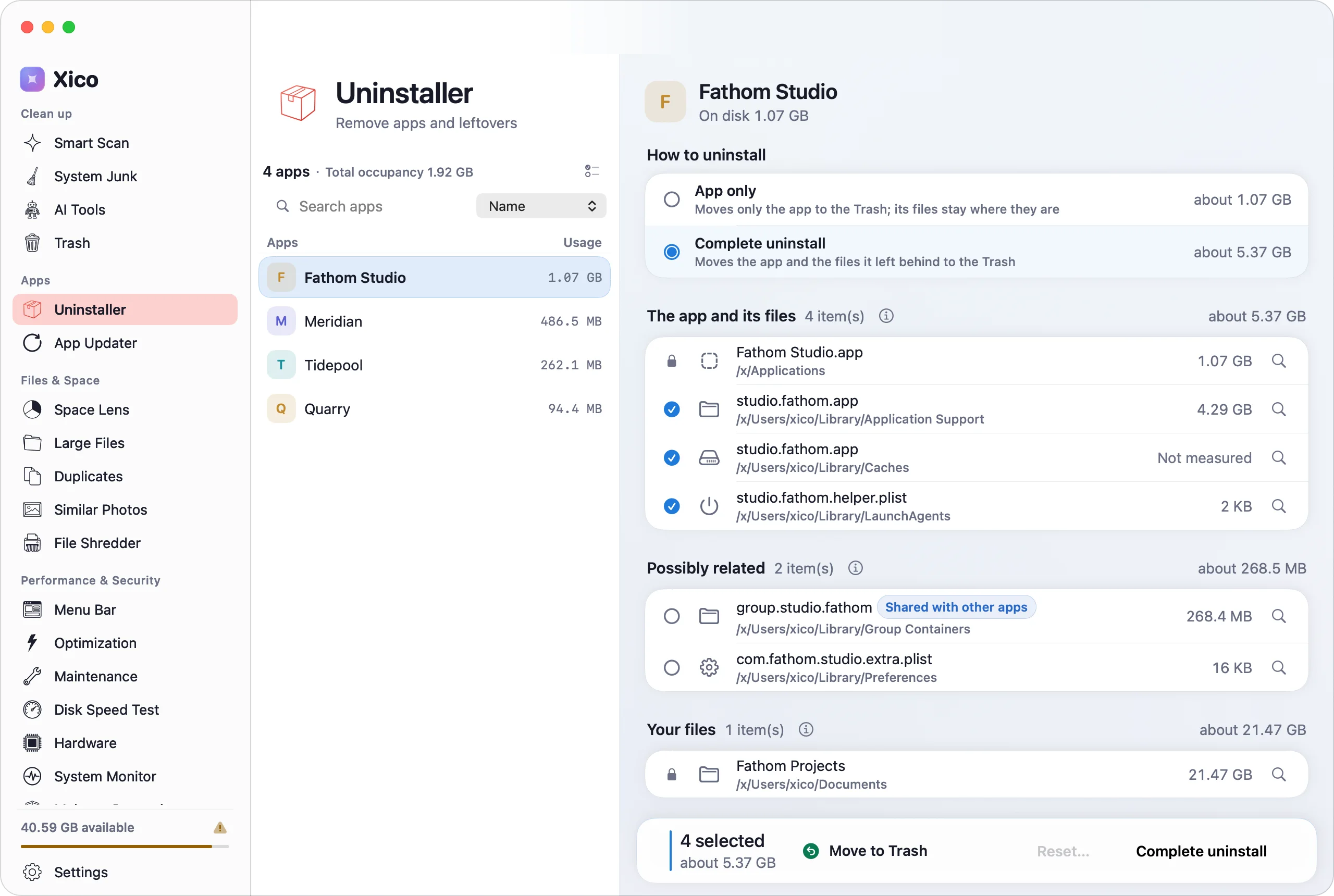
Clean uninstalls you can take back.
Apps go to the Trash along with their caches, preferences and support files — recoverable until you empty it.
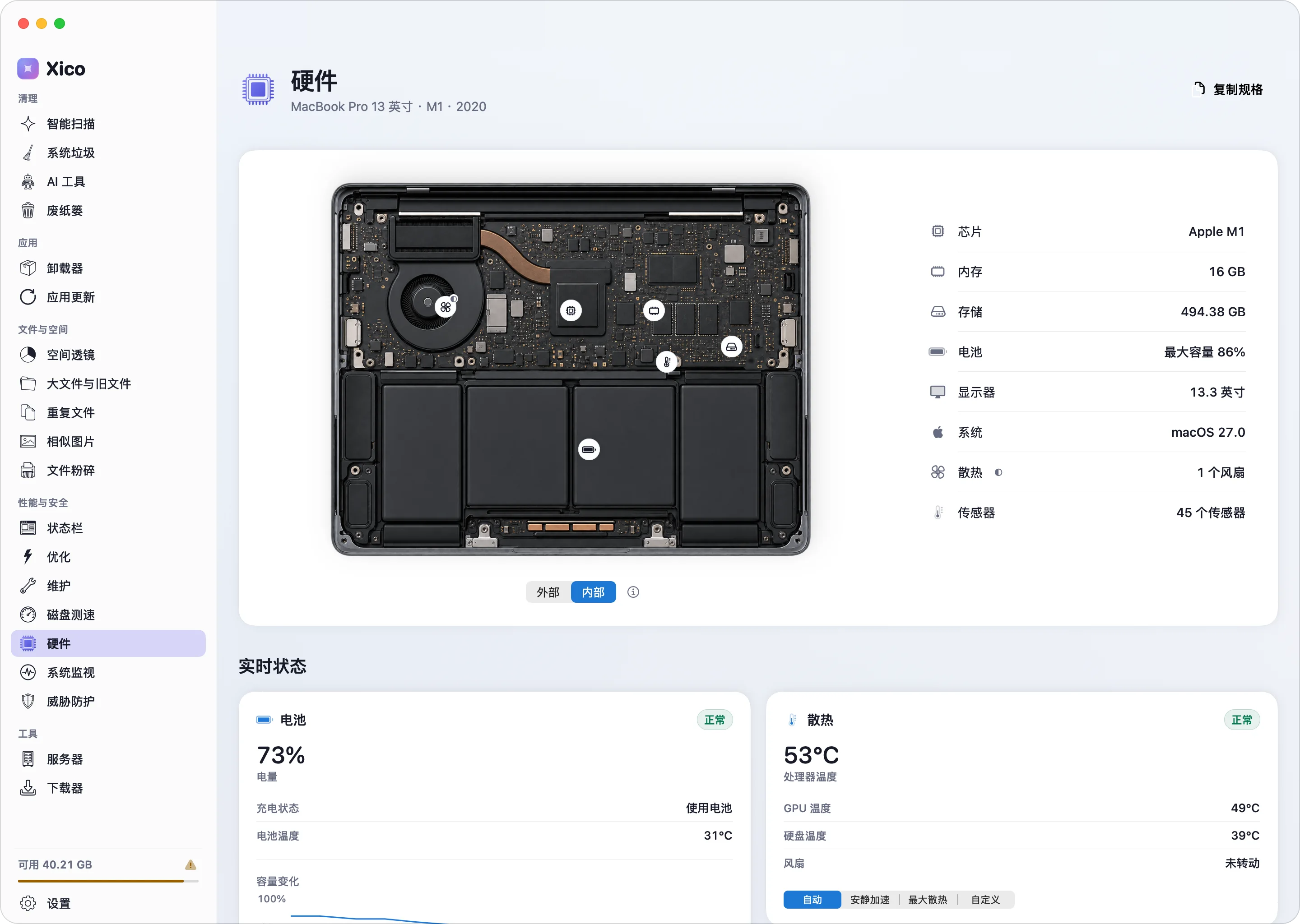
Hardware
Look inside your Mac.
Exterior and interior diagrams, battery health, SSD wear and fans, all on one page.
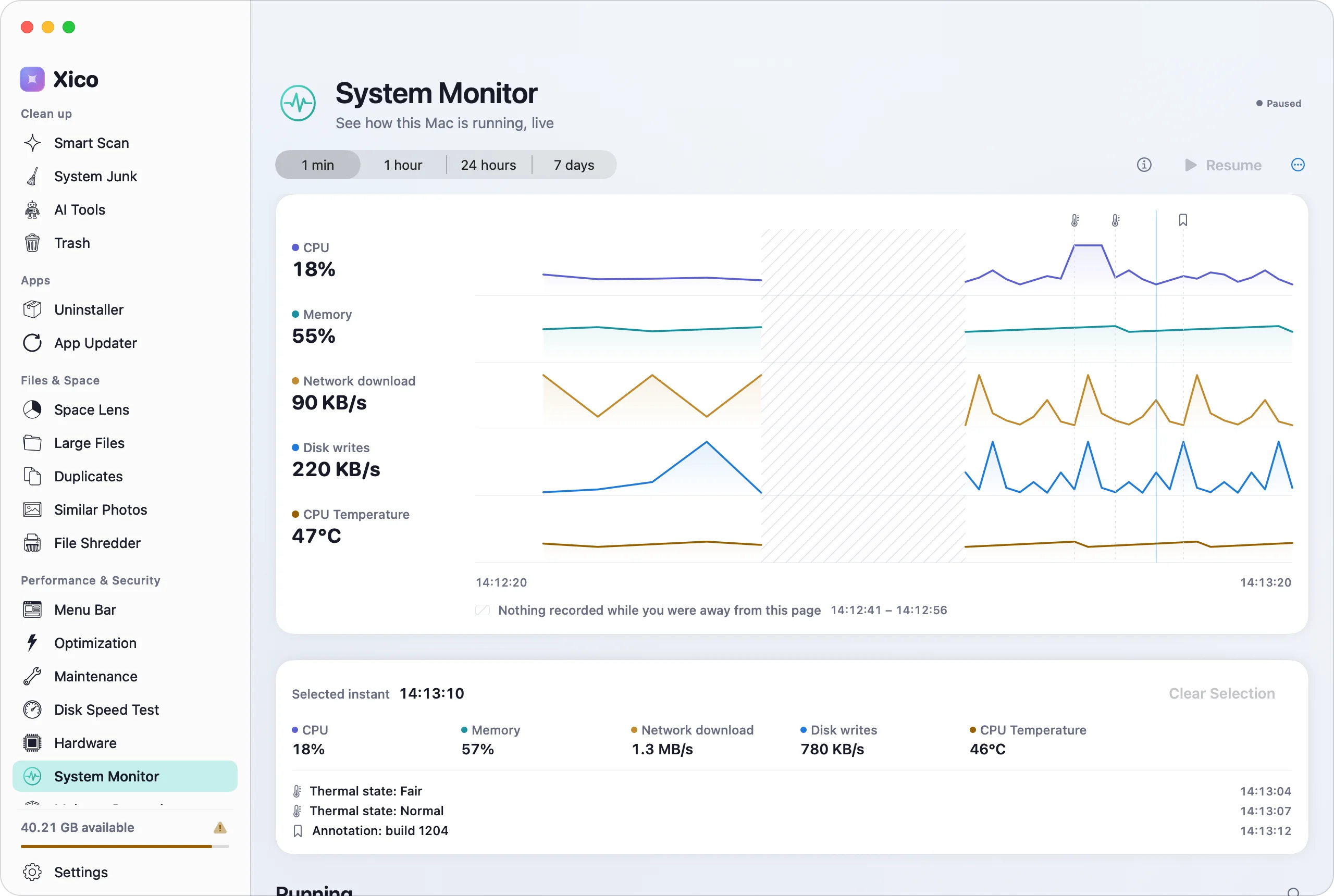
System Monitor
Every slowdown leaves a trace.
CPU, memory, GPU, network, disk and temperature on six timelines, side by side.

Smart Scan
A scan, flown like a flight.
Smart Scan checks six things at once: junk and leftovers, the Trash, threats, duplicates, similar photos, and large and old files. Every app with a finding boards as a passenger.


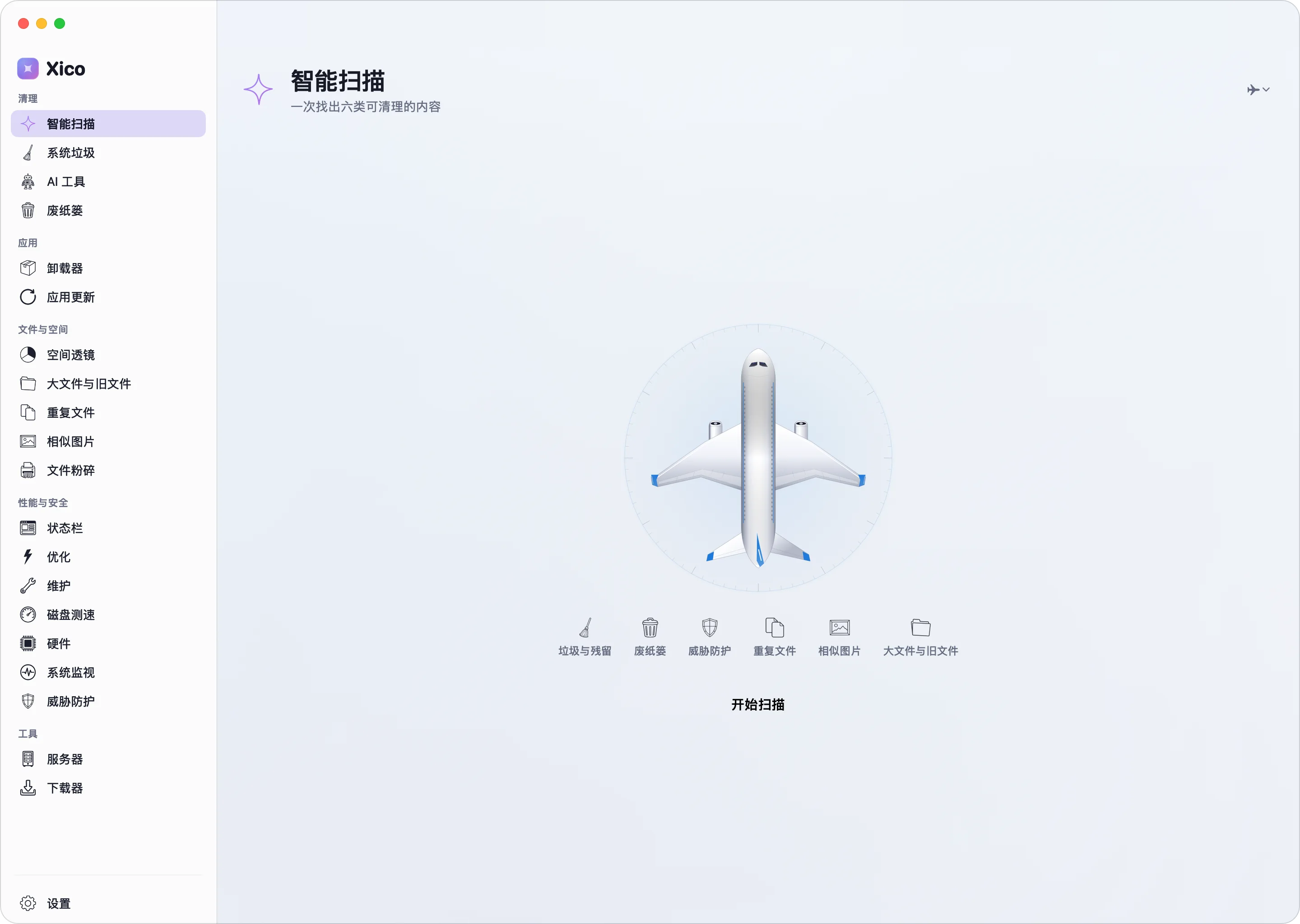
01·Gate
One click to begin.
Six checks line up at once. Start the scan and let Xico take it from there.
02·Boarding
Apps board one by one.
Each app’s real icon walks into the cabin and takes a seat. Progress follows the checks that have actually finished, and you can pause any time.
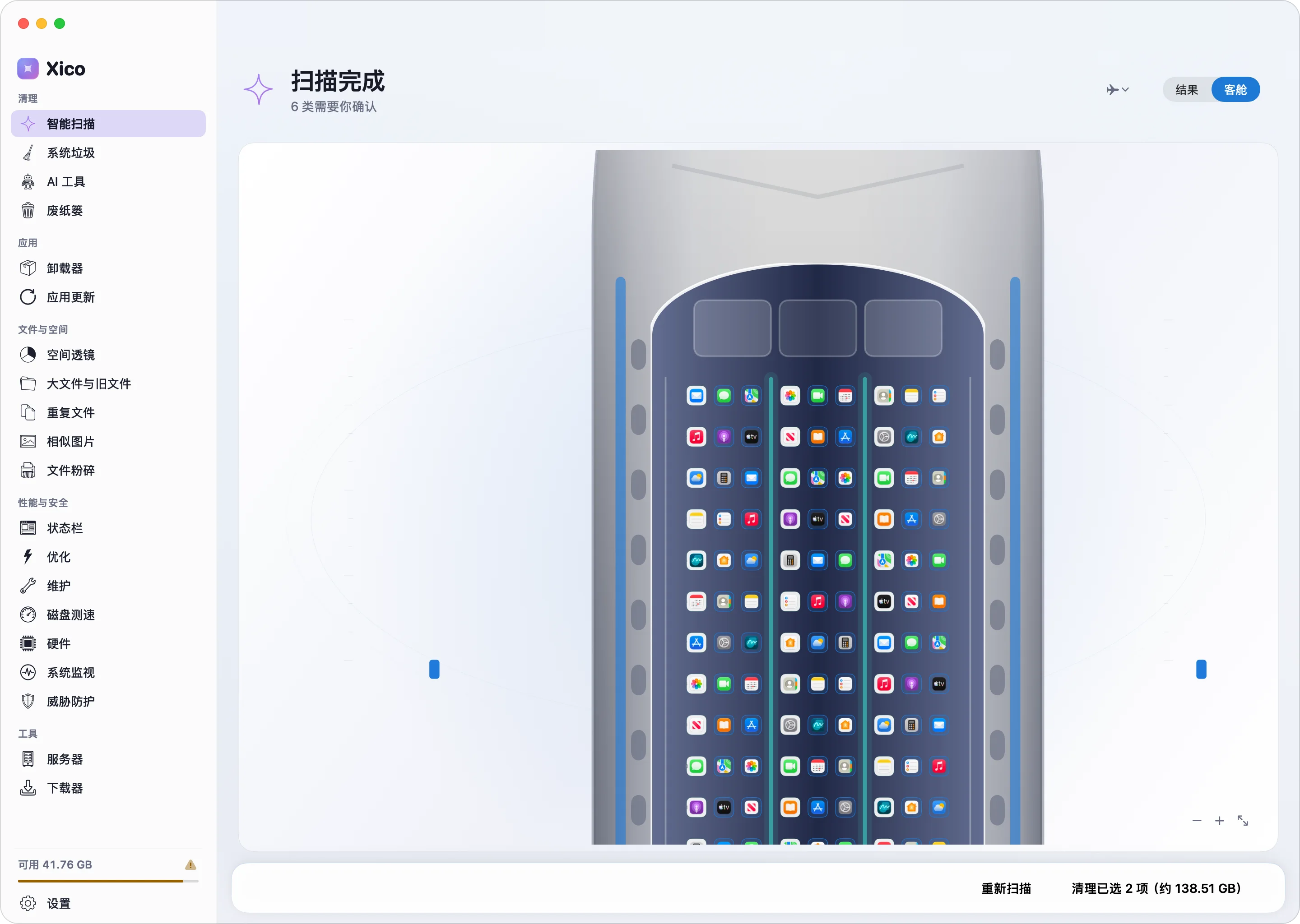
03·Full cabin
The whole cabin is your Mac.
The aircraft is chosen by passenger count, from a 737 to a double-deck A380. Open any seat to see what was found for that app.

04·Flight
Take off, clean up, land.
Once you confirm, the aircraft takes off, cruises and lands — then tells you what was removed and what went to the Trash.
See it all, then decide.
Results are split into Recommended, Needs your review and Protected. Only recommended items are preselected; everything else is your call.

A developer’s Mac, looked after too.
System Junk finds Xcode derived data, device support files and old simulators, plus caches from Homebrew, npm, pip and other package managers. Multi-gigabyte Xcode installers and archives turn up in Large & Old Files.

AI Tools
Made for the Mac of the AI era.
AI tools like Claude Code, Codex and Cursor quietly pile up caches, old versions, conversation logs and model files. On one of our own development Macs, they were using more than 30 GB.
Claude CodeCodexCursorChatGPTClaudeWindsurfVS CodeOllamaLM StudioHugging Face

Safe to clean
App caches, downloaded updates and old versions. They can always be regenerated and hold none of your data.
Your call
Old conversations, sessions, worktrees and model files are never preselected, and each says what deleting it means.
Never touched
Memory, settings, credentials and skills never appear in a cleanup list.
You can also set how long Claude Code keeps conversations: 7, 14, 30 or 90 days.
Space Lens
See where your space went.
A sunburst you can drill into lays your whole disk out in front of you. Find the biggest folders, drag them into the basket, and move them to the Trash together.

Clones, hard links and files that live only in iCloud are labelled, so space you can’t actually free is never counted as reclaimable.
Themes
Twelve themes. Pick your favourite.
A theme colours the sidebar, buttons and charts, and you can switch any time in Settings.
Clear Sky

Apps
Easy in. Clean out.
Uninstaller
Apps go to the Trash together with their caches, preferences and support files. Drag an app to the Trash yourself and Xico offers to clean up what it left behind.

App Updater
See new versions of your installed apps in one place. Updates that install inside Xico are verified first, and roll back if anything fails.

Files
Large files and duplicates, sorted.
Large & Old Files
Find the big files you haven’t opened in months, by size and last-opened date.
Duplicates
Exact content matches. Every group keeps at least one copy, and clones are recognised.

Similar Photos
Apple’s Vision finds bursts and look-alike photos, including RAW files.
File Shredder
Overwrites files three times with random data, then deletes them.
Performance
What you can see, you can tune.
Hardware
Exterior and interior diagrams, battery health and capacity history, SSD wear, fans and connected devices — all on one page.


System Monitor
Six timelines for CPU, memory, GPU, network, disk and temperature — and a way to quit the process that’s misbehaving.

Menu Bar
Pick from nine live readings for your menu bar, and choose how they look and how often they refresh.

Disk Speed Test
Sequential and random 4K reads and writes, repeated for a median — plus which video formats your drive can keep up with.
Plus Optimization and Maintenance: review login and background items, and run tasks such as flushing DNS and rebuilding the Spotlight index.
Safety
A cleaner should earn your trust first.
Review, then run
Every cleanup becomes a plan you confirm before anything happens. Items that will be permanently deleted are called out when you confirm.
Your files go to the Trash
Large files, duplicates, similar photos and uninstalled apps go to the Trash, where you can get them back until you empty it.
Protected places
System files, iCloud Drive, Mail, Messages, keychains and credentials are always out of bounds.
Threat checks and quarantine
Suspicious startup items and apps are checked, and anything quarantined can be restored.
Honest numbers
Estimates say “about”, what can’t be measured says “not measured”, and moving to the Trash is never counted as space freed.
Local processing
Scanning and analysis happen on your Mac. Your files are not uploaded.
Tools
Two more tools, close at hand.
Servers
Manage SSH servers with tabbed terminals, a file browser, port forwarding and Linux monitoring.
Downloader
Paste a link to download video, audio and images you have the right to download.
All in one
One app. A whole toolkit.
Cleanup, disk analysis, uninstalling, app updates, system monitoring, menu-bar readings, disk benchmarks, hardware health, SSH and downloads — what used to take several apps now takes one native app.
System cleanupAI cache cleanupDisk analysisDuplicatesSimilar photosUninstall & leftoversApp updatesSystem monitorMenu-bar readingsDisk speed testHardware healthThreat checksSSH terminalDownloader
Questions and answers
Is it safe? Could it delete the wrong thing?
Every cleanup becomes a plan you confirm before it runs. A built-in protection list guards critical system files, and only recommended items are preselected. Your personal files go to the Trash and can be recovered until you empty it; caches that are deleted permanently are called out when you confirm.
Will it upload my files?
No. All scanning and analysis happen locally, and no file contents are uploaded.
How does Space Lens calculate disk usage?
Space Lens builds its hierarchy from each file’s allocated size. Hard links are ignored and APFS clones are clearly flagged. You can drill down to an individual file, add it to the basket and move it to the Trash, where it stays recoverable until you empty it.
What is System Data on Mac and how do I clear it?
System Data (once called “Other”) is macOS caches, logs, local snapshots and app support files. Much of it is safe to remove. Xico Clean’s Smart Scan finds the reclaimable part and honestly separates what you free now from space macOS manages — you review every item before anything runs.
Why is my Mac slow, and how do I speed it up?
A nearly full disk, bloated caches, heavy login items and runaway apps all slow a Mac down. Xico Clean frees disk space, clears safe junk, and its menu-bar monitor shows what’s using CPU, memory and disk in real time — so you can spot and fix the cause, not just the symptom.
How do I clean my Mac and free up disk space?
Open Xico Clean and click Smart Scan — within seconds it surfaces system junk, developer caches, large files, and duplicates. Then open Space Lens to see your whole disk as an interactive map and pinpoint the folders eating the most room. A safe cleanup can reclaim anywhere from a few to dozens of gigabytes.
Tech specs
- Version
- 0.7.1 · 64.0 MB
- Requirements
- macOS 14 or later
- Processor
- Apple silicon and Intel (Universal)
- Languages
- 11 languages
- Distribution
- Developer ID signed, notarized by Apple
- Licence
- 15-day free trial, one-time purchase
Buy once. No subscription.
Personal covers one Mac; Family covers up to five. Try everything free for 15 days first.
Give your Mac a fresh start.
Download it and try every feature free for 15 days.
Version 0.7.1 · Requires macOS 14 or later · Apple silicon and Intel · 15-day free trial · 64.0 MB